
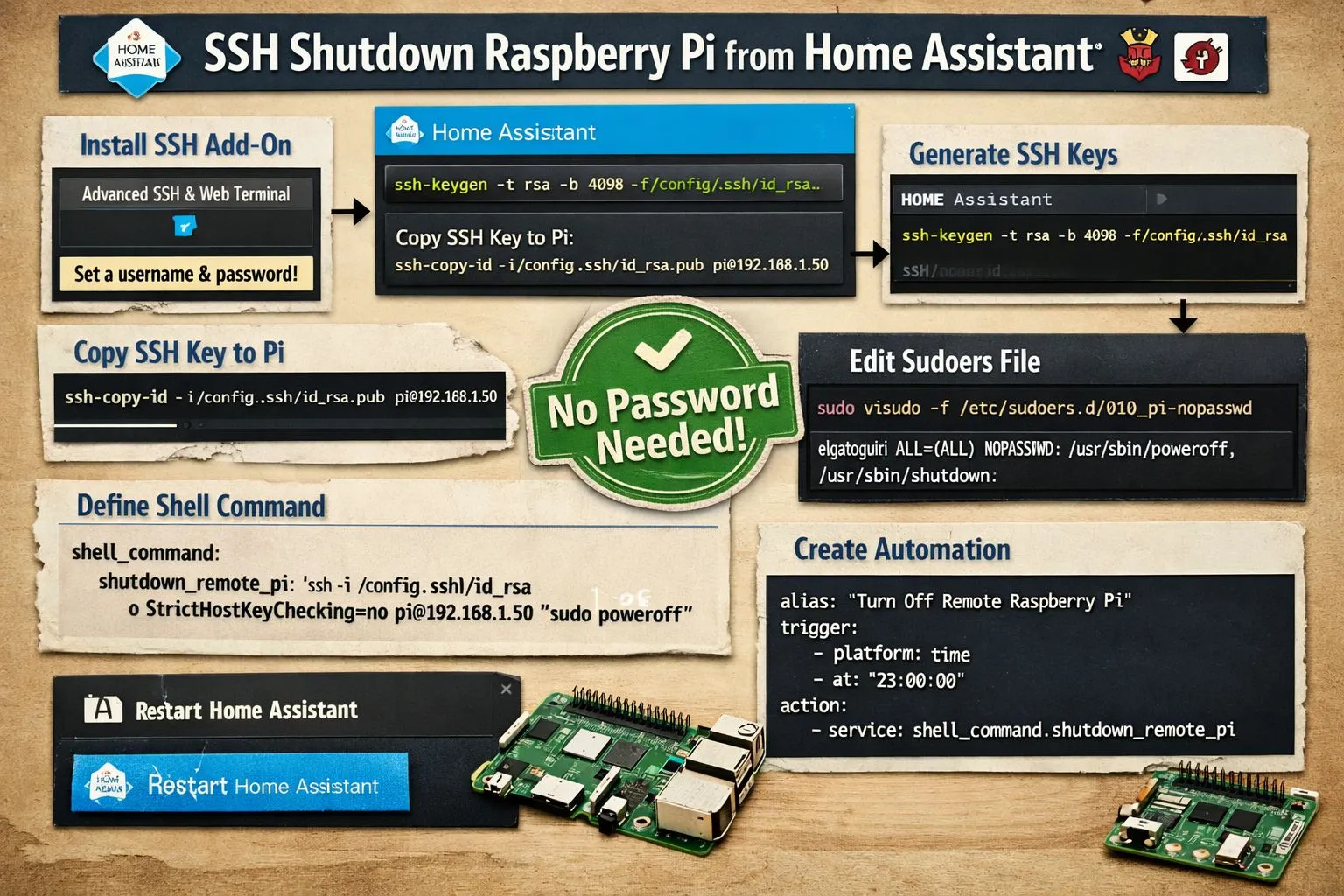
SSH Shutdown Raspberry Pi from Home Assistant
Install the SSH Add-on
Advanced SSH & Web Terminal needs a user and password set!!!
Connect From Your Computer
ssh username@target_pi_ipAccept the Fingerprint & Login
- The terminal will ask:
Are you sure you want to continue connecting (yes/no/[fingerprint])? - Type
yesand press Enter.
Generate SSH Keys in Home Assistant
Because Home Assistant automations cannot type a password for you, your Home Assistant system must trust your remote Pi using a secure key.
Create a folder for the key:
# 1. Create the directory path
mkdir -p /config/.ssh

# 2. Set strict permissions so only you can access it
chmod 700 /config/.ssh

# 3. Run your key generation command again
ssh-keygen -t rsa -b 4096 -f /config/.ssh/id_rsa -N ""
Copy the Key to The Remote Pi
Authorize your Home Assistant system to log into the remote Pi without a password:
- Send the public key to your remote Pi by running this command
ssh-copy-id -i /config/.ssh/id_rsa.pub username@target_pi_ipType your remote Pi’s password when prompted.
Test the connection manually from the Home Assistant terminal to ensure it connects without a password prompt:
ssh -i /config/.ssh/id_rsa username@target_pi_ip "echo 'Connected successfully!'"Define the Shell Command
Now, define the execution command inside your configuration file so Home Assistant can trigger it as a service.
- Open your
configuration.yamlfile (using the File Editor or Studio Code Server add-ons). - Add the following configuration lines:
shell_command:
  shutdown_remote_pi: 'ssh -i /config/.ssh/id_rsa -o StrictHostKeyChecking=no username@target_pi_ip "sudo poweroff"'
Save the file.
Go to Settings > System > Developer Tools > YAML tab, and click Restart Shell Commands (or restart Home Assistant entirely).
Create the Automation
You can now use this command inside any Home Assistant automation. Here is the YAML structure for a basic automation (e.g., triggering the shutdown when a button is pressed or at a specific time):
alias: "Turn Off Remote Raspberry Pi"
description: "Triggers a safe shutdown script on the secondary Pi"
trigger:
  - platform: time
    at: "23:00:00" # Example trigger: Nightly at 11 PM
condition: []
action:
  - action: shell_command.shutdown_remote_pi
mode: single
remote Pi to allow the user user to run the shutdown command without asking for a password.
terminal from homeassitant:
ssh -i /config/.ssh/id_rsa username@target_pi_ipsudo visudo -f /etc/sudoers.d/010_pi-nopasswdadd to the bottom:
username ALL=(ALL) NOPASSWD: /usr/sbin/poweroff, /usr/sbin/shutdownsave exit
Completely power down the pi
Configure the Raspberry Pi EEPROM to cut power to the board components upon shutdown. (5V fan will still be spinning.) SSH into the target PI.
sudo rpi-eeprom-config --editAdd or change these lines:
POWER_OFF_ON_HALT=1
WAKE_ON_GPIO=0
EEPROM_HANDSHAKE=0